A PST migration moves email out of Outlook data files (.pst) on laptops, file shares, and old exports and into one archive that also holds your Microsoft 365 history. The simplest route skips importing each file by hand. Instead, you upload the files once, and the archive ingests them and reports on what it moved.
This post covers the problems that slow a PST file migration down, what Microsoft 365’s Import service does with PST files, what to ask a PST migration tool, and how Jatheon handles the move.
Most teams that start a PST migration have email history in more than one place, such as PST files on laptops and file shares, In-Place Archive mailboxes, and exports from tools that offer nothing else. The goal is one searchable archive, with live archiving running from the first day.
Why Organizations Migrate PST Files
PST files keep email outside any system your team can search or hold. Records requests, audits, and litigation holds don’t care where a message happens to be stored, and neither should your team.
- Scattered files: PST files sit on laptops, file shares, and removable drives, and nobody has a full list of them.
- Exports with nowhere to go: Exports from old archives and ediscovery tools often arrive as PST files, which still need a home where they can be searched.
- Split history: Part of the record sits in the mailbox, part in an In-Place Archive, part in PST files on a file share. Searching all three for a FOIA or ediscovery request takes days.
- Retention obligations: SEC- and FINRA-regulated firms must keep records producible for the full retention period. SEC Rule 17a-4 sets three years for most business communications, and FINRA Rule 4511 sets a six-year default where no other period applies. Government teams have state records schedules on top.
Four Ways to Move PST Files
You have four ways to move PST files into a system you can search, and they differ most in where the data ends up and who does the work.
| Option | Cost | Where the data ends up | Who does the work |
| 1. Manual import in Outlook | No fee | Each user’s own mailbox | Each user or your IT team, one mailbox at a time |
| 2. Microsoft 365 Import service | Free over the network, with drive shipping at extra cost | Exchange Online mailboxes | Your admins, with a mapping file for each import job |
| 3. Third-party PST migration tool | Licensed by the tool vendor | Depends on the tool | Your team, or the vendor’s services team |
| 4. Jatheon | No separate fee for self-service upload and ingest | Your archive in Jatheon Cloud, next to live-archived email | Your admin uploads the files, and Jatheon handles ingest and reporting |
The manual route costs nothing on the invoice and a great deal in staff hours.
Common PST Migration Problems
PST file migration works for small, one-off moves, and it gets harder with every terabyte. A PST is a file someone has to produce, check, store, and re-import, and each step is a place where items can go missing without anyone noticing.
- Size and sprawl: Large mailboxes split into many files, and nothing tells you which one is incomplete.
- No proof of completeness: A PST doesn’t say what should have been in it, so you can’t compare it against the source.
- Manual handling: Every file is copied, moved, and re-uploaded by a person.
- Coverage gaps: Email that arrives after the export starts isn’t in the PST files, so it reaches the new archive only if live archiving is already running.
- Items left behind: Some import paths skip what they can’t handle, such as oversized messages.
- Unclear ownership: A PST on a shared drive often has no clear owner, so nobody knows which mailbox or custodian it belongs to.
- Corrupt files: A damaged PST can fail to import and has to be exported and uploaded again.
Jatheon avoids that work for supported sources, and it takes in PST files from laptops, file shares, and exports from tools with no automated path.
Importing PST Files into Microsoft 365
Microsoft 365 includes a free PST Import service that bulk-imports PST files into Exchange Online mailboxes over the network. Drive shipping, where you mail encrypted hard drives to Microsoft, costs extra and is available only under a Microsoft Enterprise Agreement.
Once imported, the mail can use Purview tools such as litigation hold, content search, and ediscovery cases, so the limits that matter sit in the import step itself.
Five of those limits affect a PST migration most.
- Skipped items: The service skips any item larger than 150 MB, the Exchange Online message size limit, and Microsoft recommends PST files of 20 GB or less.
- Import speed: A mailbox imports about 24 GB a day, so 100 GB of PST files for one user takes around four days, and several PST files for the same mailbox import one at a time.
- Archive limits: One import can place no more than 100 GB in a user’s archive mailbox, so larger sets need several imports while the archive auto-expands.
- Retention side effects: After import, Microsoft turns on retention hold for the mailbox indefinitely, and once it’s turned off, retention settings can permanently delete older imported messages.
- No public folders: PST files can’t be imported into public folders.
How Jatheon Handles PST Migration
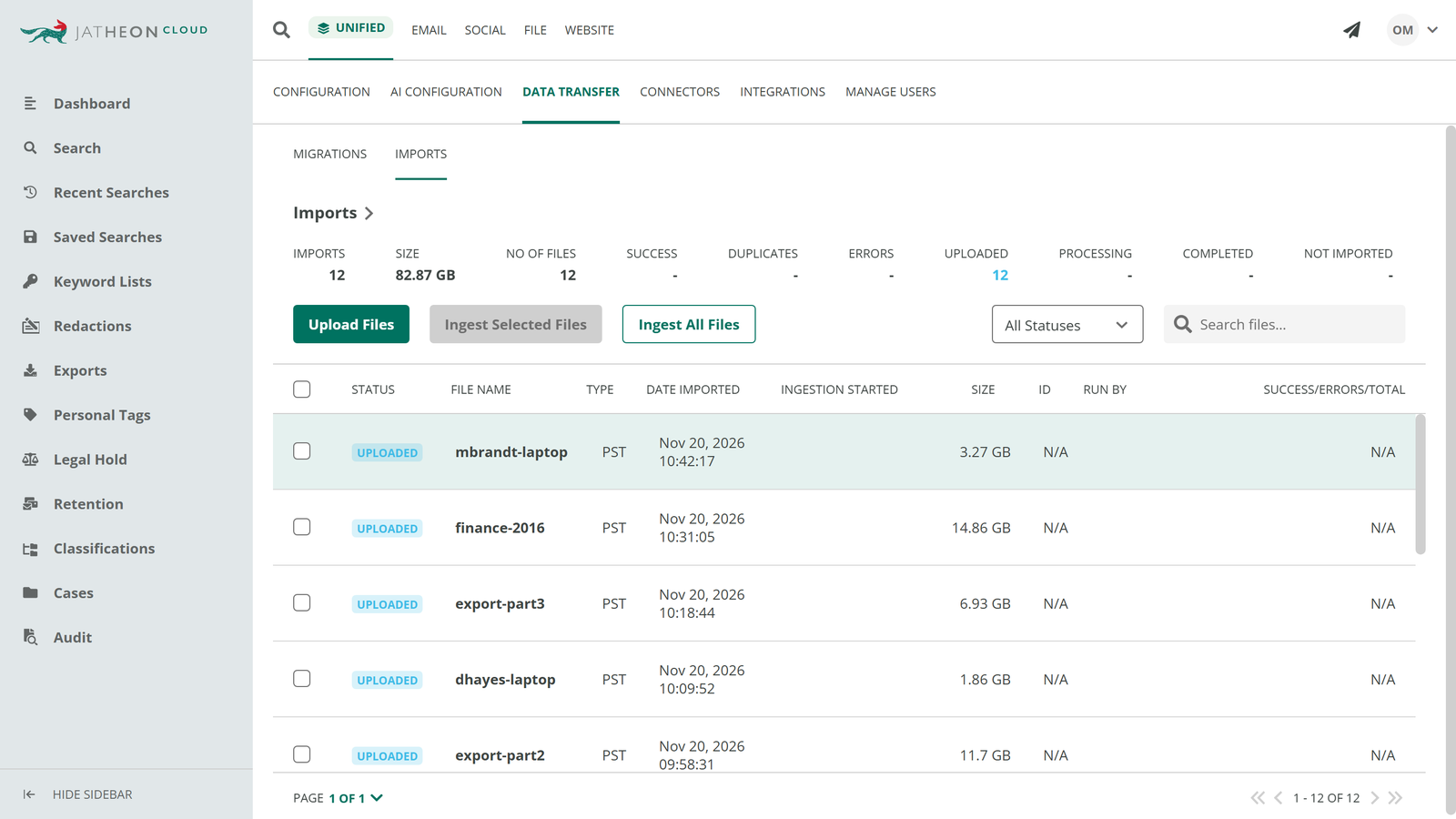
Jatheon accepts PST files and zipped EML files and ingests them into your Jatheon cloud archive, next to everything else you archive. Admins migrate PST files to Jatheon Cloud from the Data Transfer and Import section of the platform, where they upload the files and then start ingest.
- Secure upload: Jatheon Support provides credentials for a personal upload space on AWS, where you add PST or zipped EML files.
- Large volumes: For large quantities of data, Jatheon recommends transferring files with the AWS command-line tool (aws_cli).
- Single files: A file under 500 MB can go through the single-file upload instead.
- Live archiving from day one: New email is captured while history moves, so there is no gap.
- One-step ingest: Ingest All Files, on the Imports tab under Data Transfer, processes every uploaded PST or EML file automatically in the background.
- Controlled access: Only users with the Import permission can upload and ingest, and the Account Admin has the ingestion permissions by default.
If your PST files are exports from Microsoft 365, you may not need them at all. Jatheon 4.3.9, released in August 2026, made Office 365 migration faster and added In-Place Archive migration, with both mailbox types handled together in one place.
Your administrator signs in once, chooses what to move, and Jatheon runs the rest, listing anything that can’t be migrated in a downloadable report with the reason.
A Step-by-Step Plan for Moving PST Files
Work through these steps in order, from finding every PST file to retiring the originals.
- Inventory every PST file. List laptops, file shares, removable drives, and exports from old archives or ediscovery tools.
- Size each source. Record gigabytes, file counts, owners including former employees, and the oldest message date.
- List holds and retention rules. Open legal holds and records requests decide what moves first.
- Choose the route per source. Use direct migration for Microsoft 365 mailboxes and In-Place Archives, and PST upload for everything else.
- Start live archiving. Point journaling at the new archive before history moves.
- Upload and ingest. Upload the PST files to the secure location, using aws_cli for large volumes, and then run Ingest All Files.
- Reconcile and file the report. Check counts against your inventory, and keep the original PST files until the final report is saved.
Once PST history is in the archive, it sits next to your Microsoft 365 email, Teams, and mobile messages, so one ediscovery search covers all of it. Organizations that also need chat and collaboration data can add collaboration tools archiving to the same archive, and compliance archiving keeps the move defensible.
What It Costs to Migrate PST Files with Jatheon
Uploading PST files and running Ingest All Files is a self-service feature in Jatheon Cloud, and Jatheon doesn’t charge separately for it.
- Inactive mailboxes are free: Former employees’ history is migrated and kept at no extra charge. You pay for active users.
- Terms that fit: One-, three-, and five-year agreements are available.
- Training and 24/7 support: Both are included.
Questions to Ask Before Choosing a PST Migration Tool
Ask about your PST files
- Where are all the PST files, and who owns each one?
- Are any files tied to a legal hold or an open records request?
- Are any files password-protected, damaged, or split into several parts?
Ask any PST migration tool or vendor
- Which of our sources do you migrate directly, and which need PST upload?
- How do you prove every message arrived?
- Do migrated messages keep their headers, attachments, and folder structure?
- Will there be a gap in archiving during the move?
- Which items do you skip, such as messages over a size limit?
- Do you still rely on Exchange Web Services, given Microsoft’s EWS retirement in Exchange Online?
- What does it cost to leave you?