A SharePoint retention policy keeps the original of each file a user edits or deletes in a hidden Preservation Hold library, for as long as the policy says. It covers a lot, but the copy lives in the same tenant it protects, and content in the Recycle Bin can’t be searched or placed on hold. A deleted user’s OneDrive can still be lost, version history and policy scope have limits, and several records features need a Microsoft 365 E5 license.
This guide explains how SharePoint and OneDrive retention works, where it stops, and where an independent archive closes the gap.
The sections below follow Microsoft’s own documentation, so your Microsoft 365 administrator can check every statement against the source.
How a SharePoint Retention Policy Works
A retention policy applies one rule to every file in the sites you choose. Retention labels apply a rule to individual files or libraries. Both can keep content, delete it after a set period, or do both in sequence. Microsoft’s documentation on retention for SharePoint and OneDrive confirms that all files in both can be retained this way, including sites moved to Microsoft 365 Archive. A OneDrive retention policy works the same way as a SharePoint one, because each user’s OneDrive is a personal SharePoint site with its own Preservation Hold library.
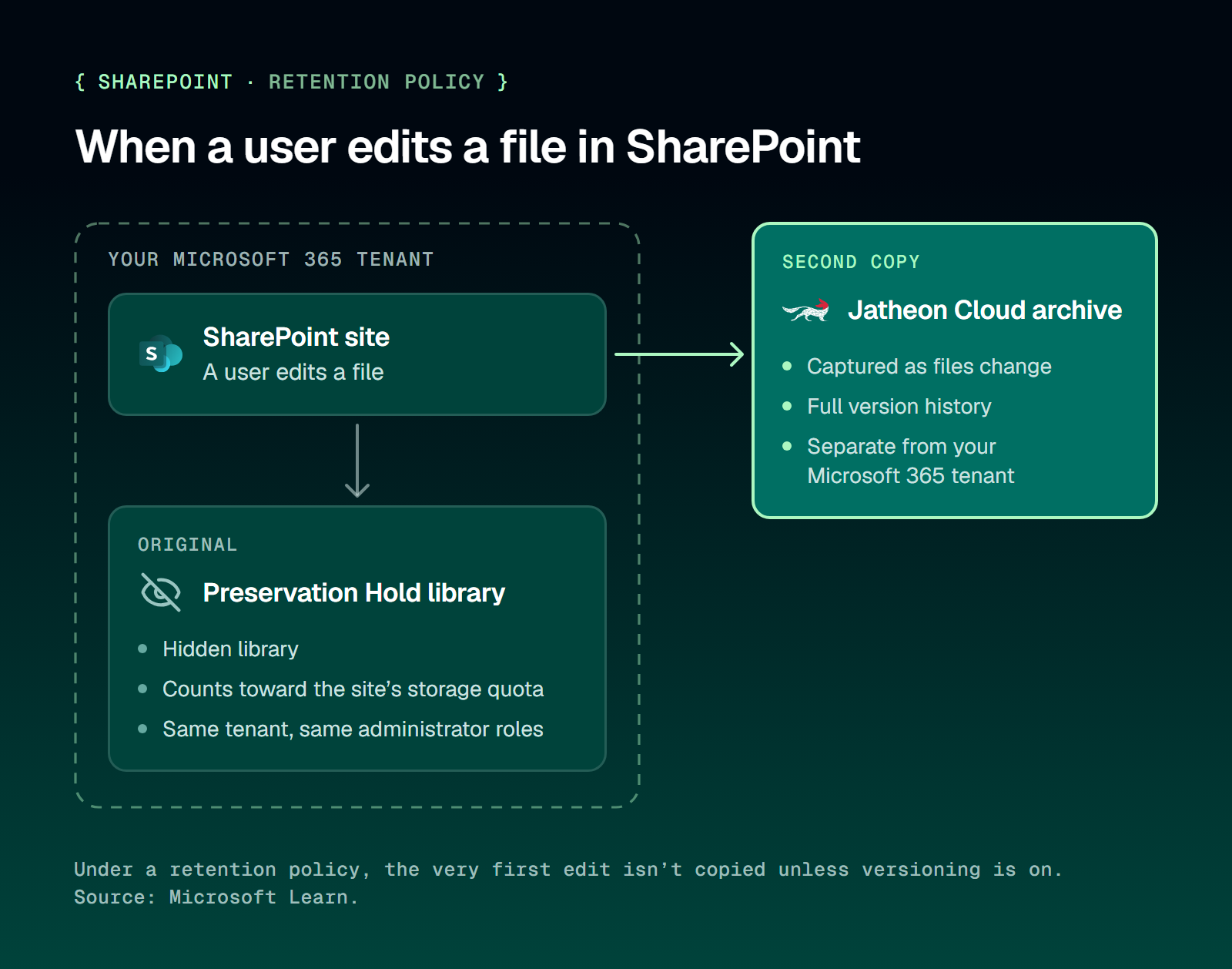
The mechanism is the Preservation Hold library. When a user changes or deletes a file that is under retention, Microsoft copies the original into this hidden library, and the user keeps working as if nothing happened. A timer job then checks the library on a schedule, so a file can sit up to 37 days past its expiry before it’s cleared.
| What the user does | Retention policy | Standard retention label |
| Edits a file | Copy kept in the Preservation Hold library (not on the very first edit unless versioning is on) | No copy kept |
| Deletes a file | Copy kept in the Preservation Hold library | Copy kept in the Preservation Hold library |
| Deletes a library, list, or site | Blocked with an error message | Blocked with an error message |
When the retention period ends and the setting includes deletion, content moves to the Recycle Bin and is permanently deleted after 93 days. Retention labels that mark files as records, and regulatory record labels, go further and block edits or deletes outright.
Where SharePoint and OneDrive Retention Falls Short
The gaps come from what retention is designed to do. It’s a hold inside Microsoft 365, set up and managed by the same administrators and stored under the same tenant as the live data. These details matter for SharePoint compliance when an auditor, a court, or a records request asks you to prove what you held.
The Recycle Bin is invisible to search
Microsoft states that the Recycle Bin isn’t indexed, so an ediscovery search can’t find content there and can’t place a hold on it. Content that expires from retention, or that a user purges, passes through the Recycle Bin before final deletion. Anything a hold missed at that point is gone for good after 93 days.
Deleting a user can end OneDrive protection
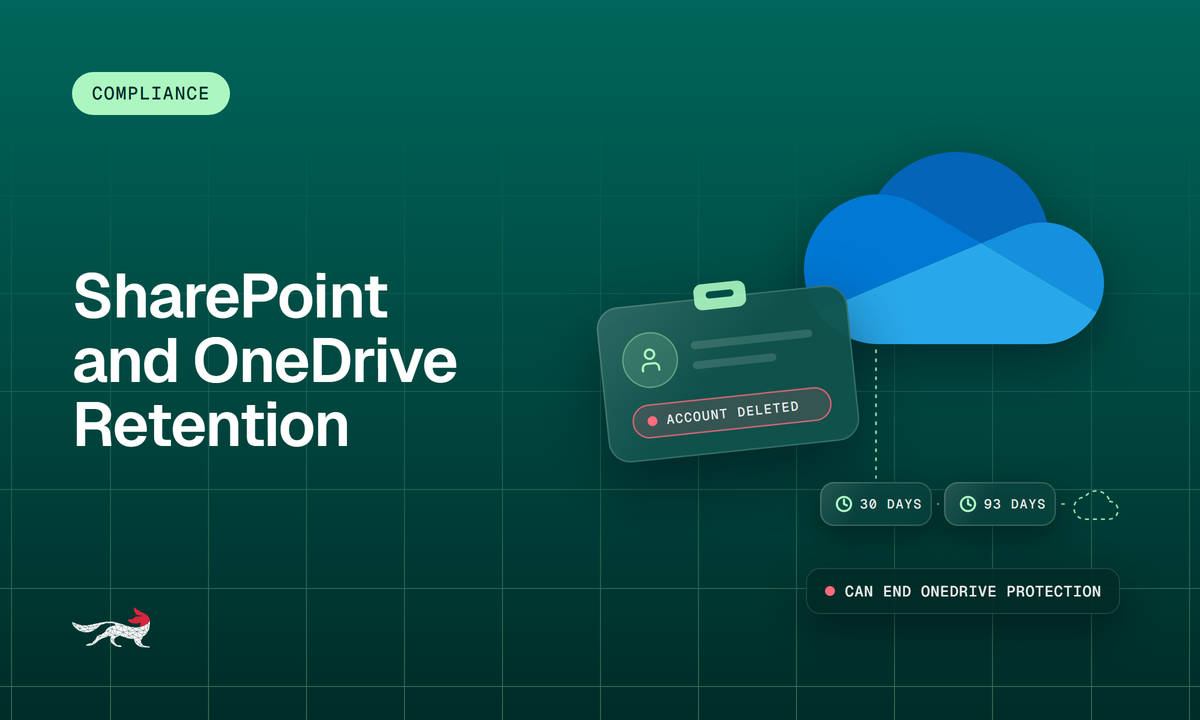
OneDrive for a deleted account follows a separate clean-up process. Microsoft Learn describes a default 30-day period, configurable by an administrator, after which the OneDrive moves to the site collection Recycle Bin for 93 days.
Retention policies and holds do take precedence over that process while they apply. Microsoft also warns that unlicensed OneDrive accounts are archived on their 93rd unlicensed day, and that after 12 months of unpaid archive storage, data might be deleted regardless of retention settings, retention policies, ediscovery, and holds. An account that nobody licenses or reviews can lose protected data this way.
Version history has limits
By default, SharePoint and OneDrive libraries keep a minimum of 500 major versions, and an administrator can change that limit. Under a retention policy, the version limit is ignored until the retention period ends, so history is preserved.
Under a retention label alone, the limit is honored and older versions are deleted automatically to make room. Which one applies to a given library depends on how your policies overlap, which is easy to get wrong across thousands of sites.
Scope and scale limits
Microsoft’s limits for retention policies cap a static policy that names specific sites or OneDrive accounts at 100 of them. A tenant supports 13 policies that cover all SharePoint and OneDrive sites automatically, and 2,600 policies that include or exclude specific locations. Policies don’t apply to list items (only labels do), and retention settings don’t apply to organizing structures such as libraries, lists, and folders.
Organizations that need different rules for different departments end up managing dozens of policies. Adaptive scopes avoid the 100-site cap by picking sites automatically based on their properties, such as their URL, but Microsoft 365 E3 doesn’t include them.
The copy isn’t independent
The Preservation Hold library counts toward the site’s storage quota. It sits in the same tenant, under the same administrator roles, as the content it protects. For regulated firms and public bodies that must show a record can’t be altered by the system that produced it, a second copy outside that boundary is the stronger answer.
What Microsoft 365 E3 and E5 Include for Retention
Basic retention is available on Microsoft 365 E3. The records features that most compliance teams ask for need E5 or an E3 add-on such as Microsoft Purview Suite. The Microsoft Purview service description sets out the split.
| Capability | E3 | E5 |
| Org-wide and site-level retention policies for SharePoint and OneDrive | Yes | Yes |
| Create and publish retention labels | Yes | Yes |
| Default retention label for a library or folder, and auto-applied labels | No | Yes |
| Adaptive policy scopes | No | Yes |
| Event-based retention | No | Yes |
| Disposition review | No | Yes |
| Mark items as records or regulatory records | No | Yes |
Licensing changes often, so confirm against the current service description before you plan a budget. If your records program depends on SharePoint records management features such as record labels and disposition review, the price of that program includes the E5 step-up for every covered user.
What an Independent Archive Adds
An independent archive takes its own copy of SharePoint and OneDrive content as it changes, so your retention doesn’t depend on a single tenant’s settings. Jatheon’s collaboration tools archiving connects to Microsoft 365 and captures files in near real time, without extra hardware or software.
| Gap in Microsoft 365 retention | What Jatheon provides |
| Copy lives in the same tenant | Content is stored in your Jatheon Cloud archive, separate from your Microsoft 365 tenant |
| Deleted accounts and unlicensed OneDrive | The archive keeps what was captured, whatever happens to the account later |
| Version limits | The connectors capture full version history, with edits and activity |
| Policy sprawl | Custom retention rules and legal hold tags are applied in one place |
| Recycle Bin content that search can’t find or hold | Captured content is searchable and can be placed on hold |
The SharePoint and OneDrive connectors
Jatheon launched the OneDrive connector in September 2025 and the SharePoint connector in November 2025. Both capture standard files and text documents, images, videos, folders, and full version history.
They run standalone or alongside the Outlook and Microsoft Teams connectors, so one cloud archive holds email, chat, and files together. You can apply legal hold tags to key documents, libraries, or folders to block changes or deletion, and set custom retention rules that remove or relocate content when the period ends.
SharePoint website archiving
Jatheon Cloud 4.3.2, released in February 2026, added capture of SharePoint-hosted websites. Pages need to be published before they’re captured, and content typically appears in the archive after about one hour.
Comments, document libraries, and media files aren’t included in this phase, so the connector and website capture complement each other. For records, public information, and websites that change often, you hold a dated copy of what visitors saw.
One search across every source
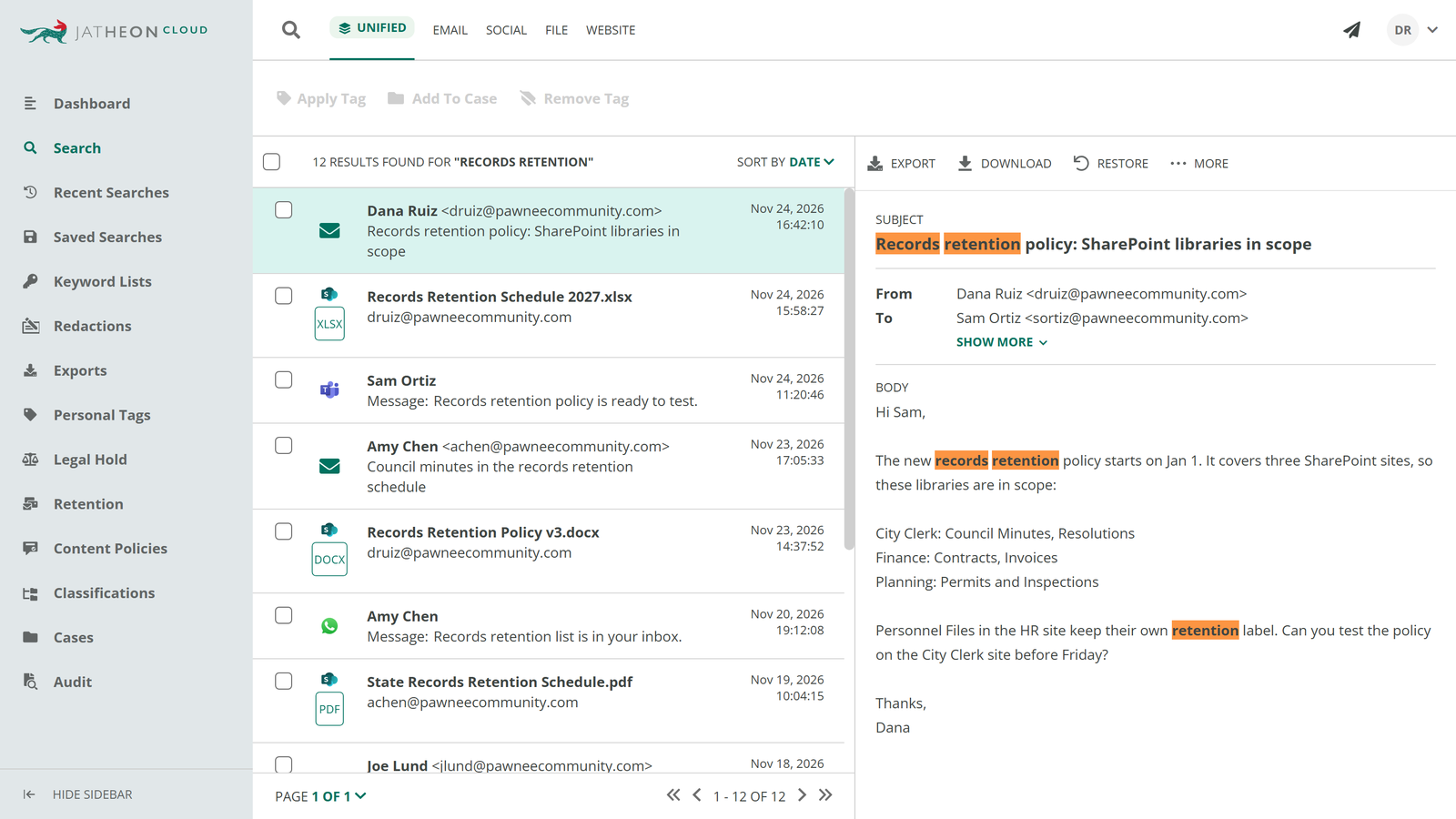
With Unified Search, an administrator searches email, chat, collaboration tools, social media, websites, and files from one interface and sees the results in a single list. A FOIA request or ediscovery request that spans a mailbox, a chat thread, and a SharePoint library becomes one search instead of three exports.
Questions to Ask Before You Rely on Microsoft 365 Retention Alone
- Which sites and OneDrive accounts do our policies actually cover, and who checks after a reorganization?
- What happens to a departing employee’s OneDrive, and who is the secondary owner when no manager is set?
- Is versioning on for every library that matters, and which limit applies?
- Do we need E5 features such as disposition review, and have we budgeted for them?
- If a regulator asks for a file as it was on a given date, can we show a copy held outside the tenant?
- Can one search cover files, email, and chat for a single request?